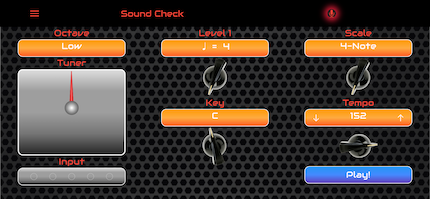
The Sound Check page is where you select your scale, tempo, octave, get tuned up and prepare for the workout. All settings are saved locally on your device.
Level: Each level is a 4 note measure. Level 1 is 4 notes long. Level 10 is 40 notes long - good luck!
Mode: There are five scale shapes that you can play.
4-Note - 4 notes in a handy box shape.
5-note - the Pentatonic scale, from the 5th.
Major and Minor - 8 notes from root to octave.
Custom - any scale shape you desire.
Key: All keys, following the Circle of Fifths.
Tempo: 60 to 180.
Octave: Low and High, press to toggle the setting.
Input: Shows your input level.
Tuner: Being in tune makes the game much easier.
When you are ready to begin, press the blue Play! button or use the top left Menu to navigate to the "Play!" page.
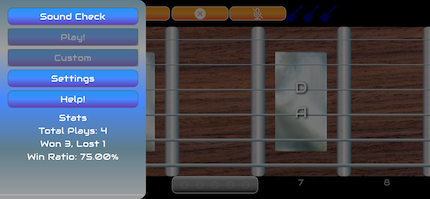
The Menu pop-up navigates you to Sound Check, Play, Custom, Settings and Help screens.
The Custom screen is enabled when the Scale knob is set to Custom.
The menu also displays basic Stats.
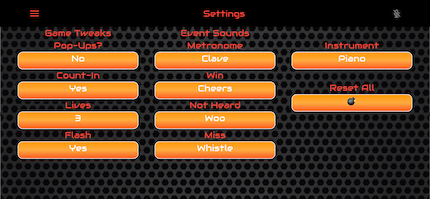
The Settings screen makes adjustments to gameplay style. All settings are saved locally on your device. Press to toggle.
Game Tweaks:
Pop-Ups?: "Yes" presents a continue dialog after each mistake or win, for beginners. "No" skips that for Hands Free continuous gameplay.
Lives: Select 3 lives or Infinite. Infinite setting disables stats.
Count-in: "No" gives one count at game start. "Yes" gives count-in each time before you play.
Flash: The fingerboard flashes green when it is your turn to play. You may disable it or enable it here.
Event Sounds:
Metronome: The Count-In sound.
Win: The sounds of Victory!
Miss: The sound when Parrot hears a wrong note.
Not Heard: If you finish your notes too quickly, or play nothing at all.
Instrument: Choose the instrument sound Parrot uses.
Reset All: Resets all games settings to default. Does not erase Stats.
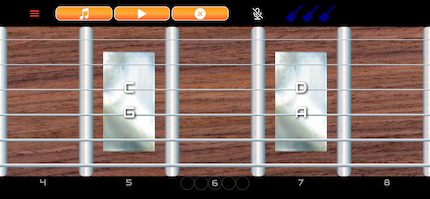
This is the main workout page. The fingerboard shows the notes that will be used, based on your Soundcheck settings.
You have three Guitar Lives, each new round starts with three.
The Menu takes you to the Sound Check page.
The ♫ button plays the selected scale, so you can hear the notes in play.
Pressing the ▶ button starts the game of random notes.

The 5-note game is a normal Pentatonic scale.
Notice that the root of the scale is not the lowest note - this is useful for most melodies.
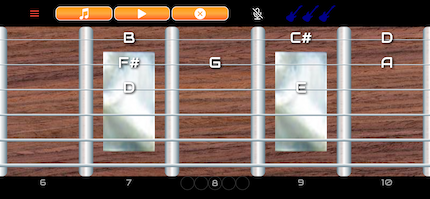
The Major scale is shown here, in the High Octave setting.
Each scale setting offers a low and high octave choice.
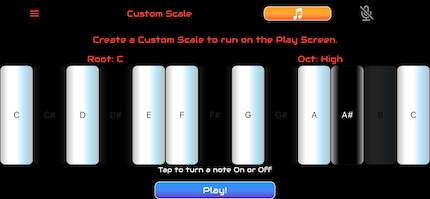
The Custom Scale screen allows you to use any combination of notes in the selected octave. The scale is saved locally on your device.
You can make Diads, Triads, Altered Scales and full Chromatic. The Mixolydian Scale is shown here in the key of C.
The ♫ button allows you to hear the scale you have created.
Press the blue Play! button or use the top left Menu to navigate to the "Play!" page.
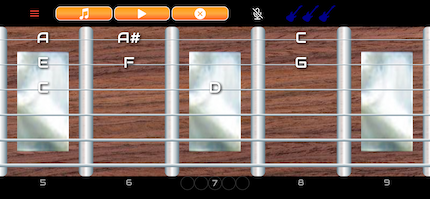
After building your scale shape on the Custom screen, return to the play screen to workout with your selection.
This is a Mixolydian Scale, High Octave.